Settle Bills Remotely: How to Take a Payment on a Check in NX Portal 💳✨
Taking a payment directly from your back-office portal makes phone orders, remote deposits, and server assistance seamless and stress-free! With the Take Payment tool in NX Restaurant POS, managers and authorized staff can process cash, credit cards, or gift card payments directly against any active open check.
Whether a guest is paying over the phone or you're settling a check on behalf of a floor server, this guide walks you step-by-step through the process! 🚀
When to Use Take Payment 📌
The Take Payment tool is designed for quick, secure back-office settlement:
- 🟢 Active Business Date Only: The option appears only for open checks created on today's business date that still have a balance owing.
- 🪑 Seat-Specific Settlement: If a check has multiple seats, the payment is applied to whichever Seat tab you currently have selected!
- 🔒 Permission Required: Staff profiles must have the Apply payments to others' orders permission enabled to access this feature.
Step-by-Step: Processing a Payment in NX Portal ⚙️
Step 1: Open the Check & Click Take Payment:
Open payment wizard.
Navigate to Checks in NX Portal, open your target order, select the correct seat tab, and click the green Take Payment button.
Step 2: Choose Your Tender Type:
Select payment tender.
Select the payment tender the guest is using:
- 💵 Cash: Record cash received and calculate change.
- 💳 Credit: Charge a new card or reuse a saved card from an earlier check.
- 🎁 Gift Card: Redeem an active restaurant gift card balance.
3.Step 3: Enter Payment & Tip Amounts:Enter dollar amounts.
- Amount: Defaults to the full balance owing. Lower this number to take a partial payment!
- Cash Received (Cash Only): Type the cash handed over; the system automatically calculates change due.
- Tip (Credit Only): Enter an optional tip amount.
4.Step 4: Enter Card or Gift Card Details:Provide account info.
- New Credit Card: Enter the card number, expiration, and CVV in the secure card box. (Your portal never sees or stores full card numbers!)
- Search Saved Cards: Re-apply a card used on another check within the last 30 days by searching the card's last 4 digits, guest name, or check number.
- Gift Card: Type or scan the gift card number and click Validate to check the available balance.
5.Step 5: Review & Attribute Payment:Attribute sales & confirm.
Review the final summary breakdown (including card surcharges or cash change due).
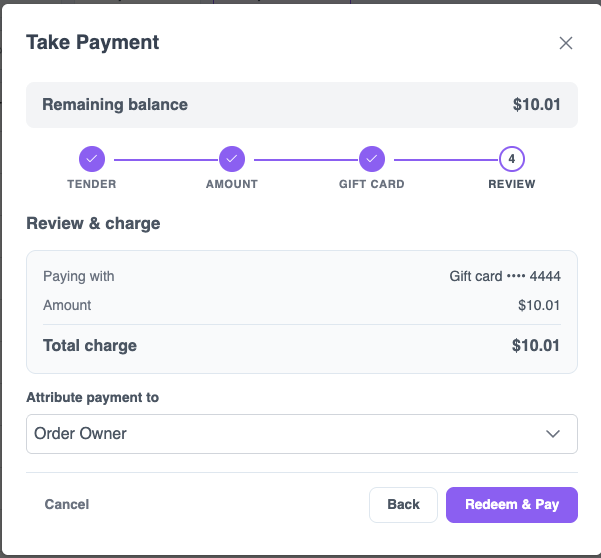
Choose who to attribute the payment to:
- Order Owner (Default): Attributes the payment to the employee who opened the check.
- Another Employee: Select another clocked-in staff member and their active timecard.
Click Take Payment, Charge Card, or Redeem & Pay!
What Happens After Payment? 🧾
Once the transaction processes successfully:
- A confirmation message reading "Payment applied" appears, and the check's open balance updates automatically.
- If the balance reaches
$0.00, the check status automatically settles to closed! - A pop-up dialog prompts you to print the official Payment Voucher (merchant and customer copies). Choose your office printer and click Print Voucher, or click Skip.
Troubleshooting & Common Error Messages 🔍
| Problem / Error Message 💡 | Likely Cause 🔍 | Solution / Fix 🛠️ |
| "Take Payment" button is missing | The check is fully paid, belongs to a previous business day, or you lack permissions.
| Verify that the check has a balance owing on today's date. Ask an administrator to check your account permissions.
|
| "The card was declined" | Card numbers were mistyped or the bank declined the charge.
| Re-verify card details or ask the guest for an alternative card or tender.
|
| "No eCommerce merchant account is configured" | Missing e-commerce setup in venue settings.
| Contact NX Support to verify that an online merchant processing token is attached to the tender.
|
| "Duplicate charge / same card, same amount" | An identical payment attempt occurred moments ago.
| Close the window and check the Payments tab on the check first to ensure the guest isn't charged twice!
|
| "The gift card could not cover this amount" | Gift card balance is lower than the check total.
| Lower the payment amount to match the gift card balance, then pay the remaining balance with another tender.
|
How to Verify Payment Success
If an unexpected network error occurs while taking a card payment, always close the wizard and check the Payments tab inside the Check Viewer before trying again! This prevents accidentally charging the guest's card a second time.
Need Additional Support? 💬
If you encounter persistent payment processing issues or need help setting up merchant payment options in NX Portal, reach out directly to NX Restaurant Support! Have your venue name and Check ID ready so our team can assist you right away 🌟!